![Icon Reversed.png]](https://knowledge.fluidflowinfo.com/hs-fs/hubfs/Icon%20Reversed.png?height=40&name=Icon%20Reversed.png)
Introduction
While working in FluidFlow, you may occasionally find that certain toolbars or UI elements such as the Input Editor, Data Palette, or Component Palette, have disappeared from your workspace. This can happen due to various reasons including accidental closing, system crashes, or corrupted preference files. This article provides comprehensive troubleshooting steps to restore these missing elements and get your FluidFlow workspace back to normal.
Quick Solutions
If you notice that certain UI elements are missing, try these quick solutions first before proceeding to more advanced troubleshooting:
Method 1: Using the View Menu
- For missing Component Palette: Select View | Component Palette from the main menu
- For missing Data Palette: Select View | Data Palette from the main menu
- For missing Input Editor: Select View | Input Editor from the main menu
Method 2: Resetting the Interface
If the above doesn't work, try resetting the menus and layout:
- Select View | Reset Menus from the main menu
- Select View | Reset Layout from the main menu
- Restart FluidFlow if the changes do not automatically apply
Advanced Troubleshooting
If the quick solutions don't resolve your issue, try these more advanced troubleshooting steps:
Method 3: Manually Deleting Preference Files
Sometimes preference files can become corrupted and need to be deleted:
-
Save any unsaved work and exit FluidFlow completely
-
Go to Options | Environment | Open Environment… menu
-
Note or copy the folder location from the dialog. For example, in the image below, you would copy
C:\\Users\\Public\\Documents\\Flite\\FluidFlow3\\Preferences\\Administrator\\3530: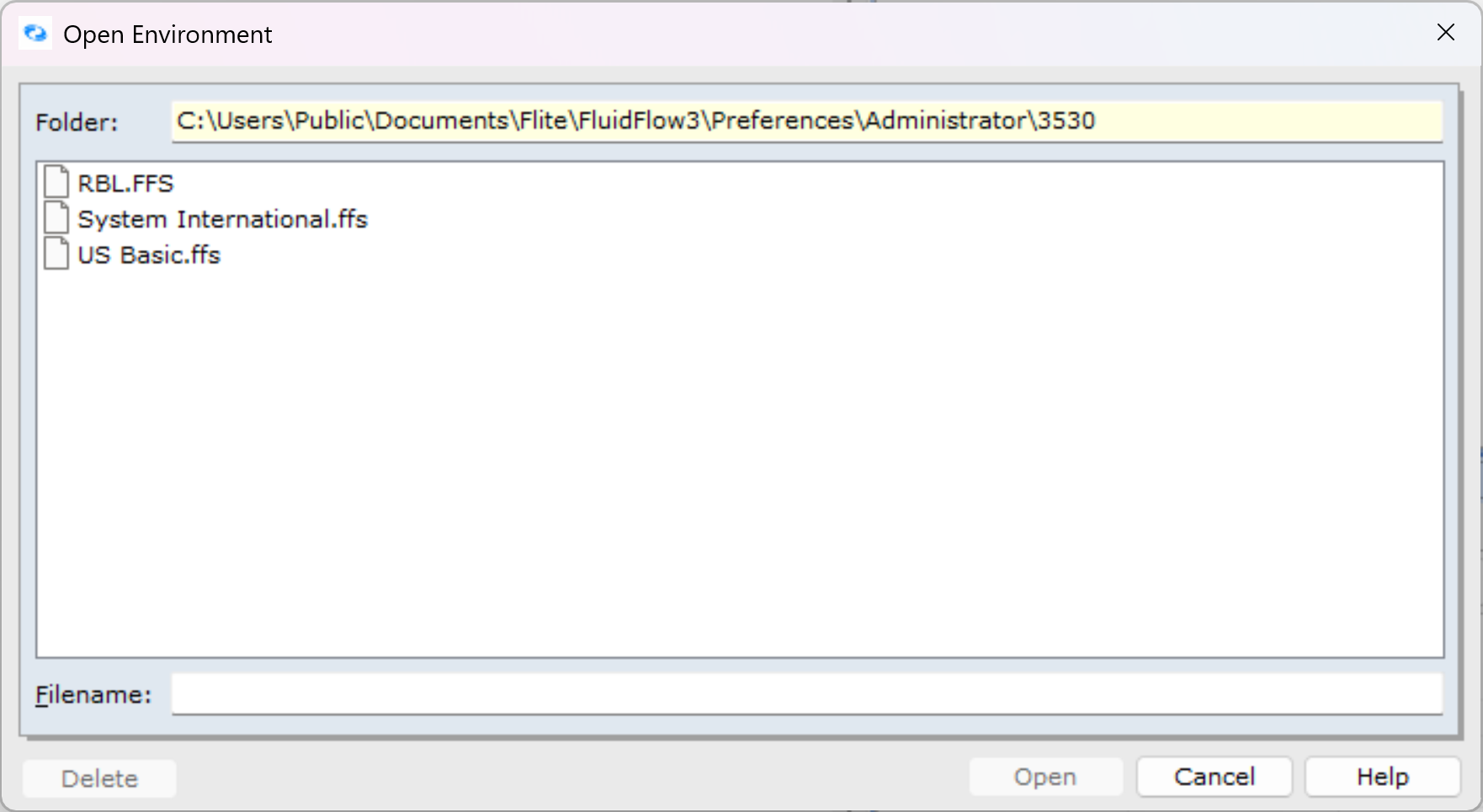
-
Close FluidFlow
-
Navigate to the folder noted in step 3
-
Delete the
.BARand.LAYfiles -
Restart FluidFlow
FAQs
Q: Will deleting preference files affect my projects or data?
A: No, deleting preference files only affects the appearance and arrangement of toolbars and UI elements. Your project data remains intact. However, as a precaution, always save your work before making any changes to preference files.
Q: My toolbars are visible but in the wrong positions. How can I fix this?
A: You can either drag and reposition the toolbars manually or use View | Reset Layout to restore the default positioning.
Q: What if none of these solutions work?
A: If you've tried all the solutions in this article without success, please contact FluidFlow Technical Support at support@fluidflowinfo.com.
Conclusion
Missing toolbars and UI elements in FluidFlow can typically be restored through simple menu commands or by resetting preference files. Using the View menu options to reset menus and layouts will resolve most issues. If problems persist, try manually deleting specific preference files to restore your workspace to its default state, or contact FluidFlow Technical Support for additional assistance.